Knowledge Base
Instant Meetings
Medicare Express Instant Meetings - Agent Training Guide
Audience
Agents using the Medicare Express portal.
Tools
- Medicare Express PWA
- Agent Dialer
Primary Goal
Connect, answer, document, and return to the correct status.
Training Objective
This guide trains agents on how to use the Medicare Express portal and Agent Dialer for Instant Meetings. Agents should be able to enable notifications, connect to the dialer, accept a meeting call, review the meeting record, document notes, end the call correctly, and return to the proper availability status.
Before First Call: Browser Settings Check
Agents should complete these browser checks before connecting to the Agent Dialer.
- Use Chrome on a desktop computer when accessing the Medicare Express portal and Agent Dialer.
- Allow pop-ups and redirects for the Medicare Express portal.
- Allow microphone access for the Medicare Express portal.
- After changing browser permissions, refresh the portal and reconnect to the Agent Dialer.
- Trainers should validate pop-up and microphone permissions before the agent begins taking Instant Meetings.
How to Allow Pop-Ups in Chrome
- Click the site controls icon next to the portal URL in the browser address bar.
- Select Site settings.
- Find Pop-ups and redirects and change the setting to Allow.
- If Chrome shows a blocked pop-up icon, click it and select Always allow pop-ups and redirects from this site, then refresh the page.
How to Allow Microphone Access in Chrome
- Click the site controls icon next to the portal URL in the browser address bar.
- Select Site settings.
- Find Microphone and change the setting to Allow.
- Confirm the correct microphone is selected if multiple audio devices are available.
- Refresh the portal and reconnect the dialer after permission changes.
Core Rules for Agents
- Stay connected to the Agent Dialer when scheduled to receive Instant Meetings.
- Enable browser notifications so meeting updates and incoming call activity are visible.
- Use the portal meeting record as the source of truth for consumer information and notes.
- Document meaningful notes before moving on to the next meeting.
- Use the correct status after each call.
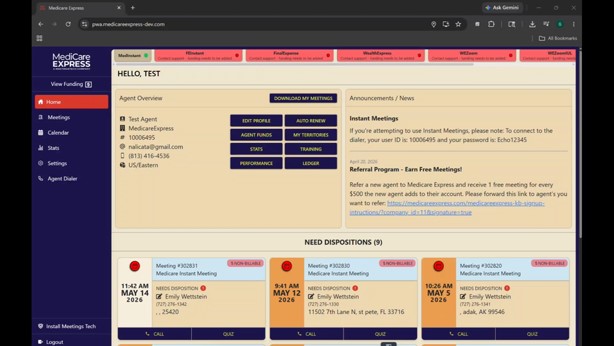
Home screen showing Agent Overview, Instant Meetings announcement, Need Dispositions, Call buttons, and portal navigation.
Step-by-Step Workflow
-
Log In and Review the Home Screen
Confirm you are in the correct Medicare Express portal. Review Agent Overview, announcements, and Need Dispositions. -
Open Preferences and Enable Notifications
Go to Settings > Preferences and enable notifications. Verify notifications, pop-ups, redirects, and microphone permissions are enabled. -
Connect to the Agent Dialer
Verify your user ID is connected, presence is online, and call status is Ready or Available. -
Answer the Incoming Meeting Call
Use the dialer controls to answer incoming calls. Use Go To Meeting when available. -
Review the Meeting Record
Verify meeting number, meeting type, consumer details, meeting duration, and notes. -
Add Notes During or After the Call
Enter clear, factual notes and save them before moving on. -
End the Call and Select the Correct Status
Use End when finished. Move to After Call Work if documentation is incomplete. Return to Available when ready for the next call.
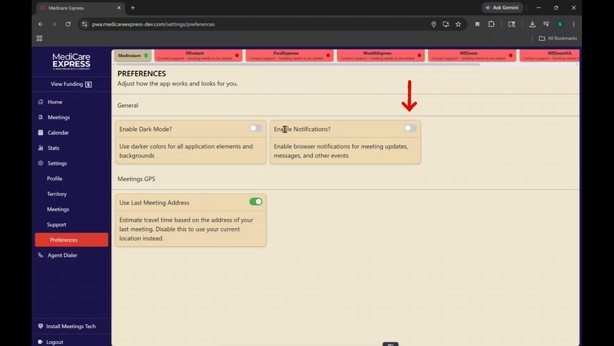
Preferences screen: Enable Notifications should be turned on for meeting updates and alerts.
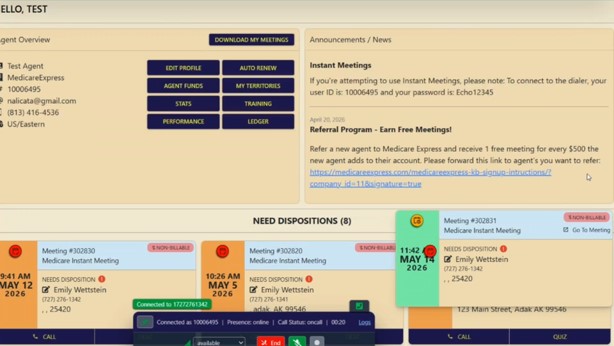
Connected call view from the Home screen: meeting card is active and dialer shows connected status.
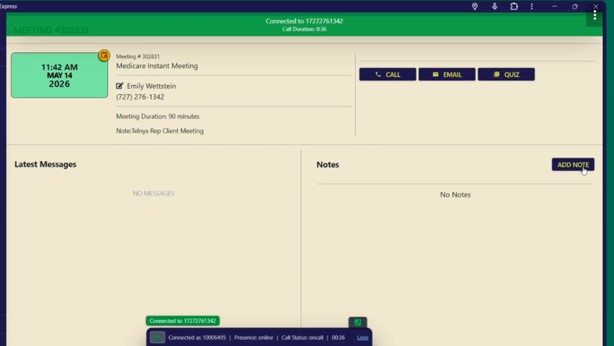
Meeting record view: review consumer details, latest messages, notes, and available action buttons.
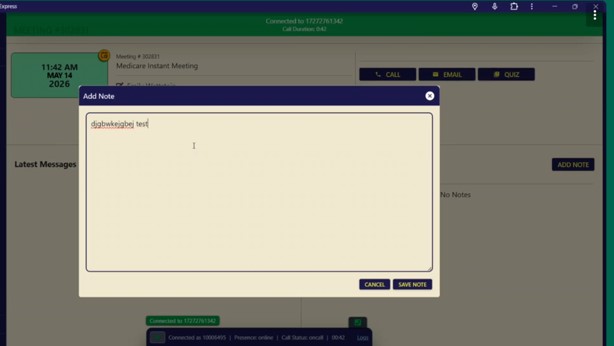
Add Note window: enter the call summary and save the note before moving on.
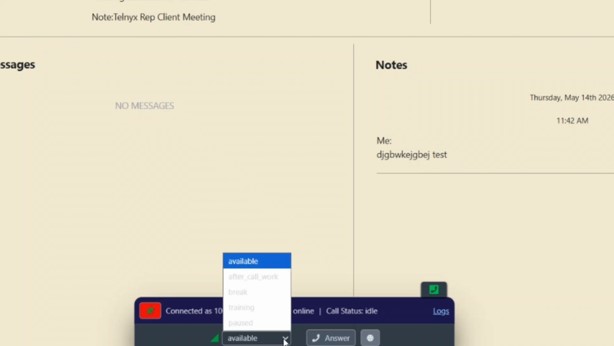
Dialer status menu: choose Available, After Call Work, Break, Training, or Paused based on your current state.
Documentation Standards
Every note should make it clear what happened, what the consumer said, what action was taken, and what needs to happen next. Avoid one-word notes, unclear shorthand, or test language in live production.
| Note Component | What to Include | Example |
|---|---|---|
| Consumer Outcome | Answered, requested callback, had questions, disconnected, or needed follow-up. | Consumer answered and confirmed interest in speaking with a licensed agent. |
| Action Taken | Call placed, email sent, issue escalated, or meeting record updated. | Reviewed meeting details and confirmed phone number. |
| Next Step | What should happen next and who owns it. | Agent to follow up at scheduled meeting time. |
| Issue Detail | Technical issue, wrong number, missing information, or concern. | Call dropped after introduction; callback attempted. |
Agent Dialer Status Guide
| Status | Use When | Important Reminder |
|---|---|---|
| Available | Ready to receive the next call. | Only use after notes and call work are complete. |
| After Call Work | Need time to finish notes or follow-up. | Do not stay here longer than necessary. |
| Break | On an approved break. | Return to Available when the break ends. |
| Training | Participating in training. | Use only during scheduled training. |
| Paused | Temporarily unavailable. | Use only when instructed or approved. |
Troubleshooting and Common Issues
- Notifications not appearing: Verify notifications are enabled in Preferences and Chrome.
- Dialer offline: Reconnect through the Agent Dialer panel and verify presence is online.
- Not receiving calls: Confirm status is Available and the portal remains open.
- Meeting record won't open: Use Go To Meeting or locate the meeting manually.
- Notes not saved: Verify the note appears in the Notes section after clicking Save Note.
- Dialer won't open: Check Chrome pop-up settings and refresh the portal.
- Consumer cannot hear agent: Verify microphone permissions and selected device.
- Agent cannot hear consumer: Verify headset connection and browser audio settings.
Trainer Validation Checklist
- Agent can log in and identify Home, Meetings, Settings, and Agent Dialer.
- Agent can enable notifications.
- Agent can confirm dialer connection and status.
- Agent can answer an Instant Meeting call.
- Agent can review meeting details.
- Agent can add and save notes.
- Agent can correctly use After Call Work and Available statuses.
- Agent understands documentation standards.
- Agent has enabled pop-ups and microphone permissions.
- Agent understands when to refresh and reconnect the dialer.
Quick Reference
Before calls: Pop-ups allowed, microphone allowed, notifications enabled, dialer connected, and status set to Available.